from softpedia.com Windows Firewall Control is a tool that provides fast access to the Windows Firewall settings and enhances functionality by letting you manage networking rules for each application. It mainly caters to experienced users, such as network administrators. Once initialized, the app creates an icon in the system tray area and allows you to select the security profile, ranging from no filtering (turns off Windows Firewall) to high filtering mode (blocks all inbound and outbound connections). When it comes to rules management, you can allow or deny access to any application, disable, delete it from the list or create a duplicate. The list shows names, groups, programs, locations, statuses, actions, directions, locate and remote ports, remote addresses, protocols, and services. It is possible to sort items by status or direction (inbound, outbound, all, user-created), use a search function, view recently blocked programs, as well as switch to a simplified viewing mode for enabling and disabling program access, as well as for adding a new app to the list. Windows Firewall Control features a control panel where you can make additional tweaks. You can integrate the tool into the Explorer context menu, set it to autorun at startup, disable other programs from adding firewall rules, activate global hotkeys for the control panel and rules management area, adjust the frame's hue, import and export rules, as well as access some Windows tools (Firewall with Advanced Security, Command Prompt, Event Viewer, Resource Monitor, Windows Registry). The application has a fair reaction speed and works smoothly, without causing any problems to the OS. It quickly applies rule changes. All in all, Windows Firewall Control is an excellent utility for a better control over Windows Firewall options, especially when it comes to setting up rules for each program. Screenshot 1 of Windows Firewall Control The image below has been reduced in size. Click on it to see the full version.
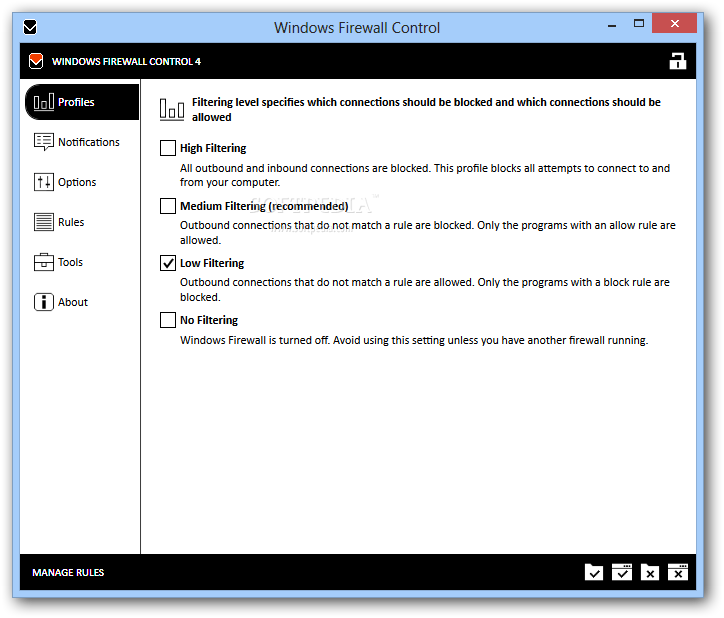
"In the main window of Windows Firewall Control, you can enable filtering in order to find out which connection should be blocked"
 |
| Screenshot 2 of Windows Firewall Control The image below has been reduced in size. Click on it to see the full version.
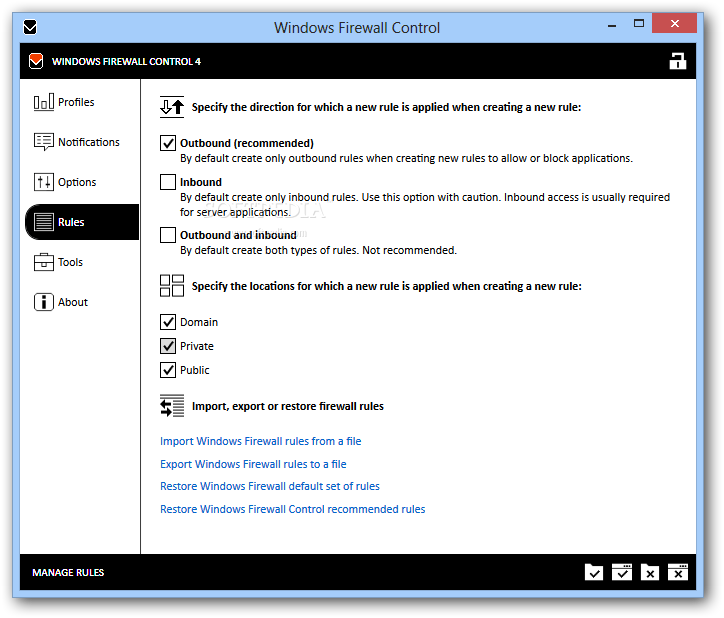
"In the Rules section of the app, you can specify the direction for which a new rule is applied when creating one"
 |
| Screenshot 3 of Windows Firewall Control The image below has been reduced in size. Click on it to see the full version.
"From the Tools section, you can access the Command Prompt, Event Viewer and Windows Registry windows"
 |
| Screenshot 4 of Windows Firewall Control The image below has been reduced in size. Click on it to see the full version.  |
| Screenshot 5 of Windows Firewall Control The image below has been reduced in size. Click on it to see the full version.  |
| Screenshot 6 of Windows Firewall Control The image below has been reduced in size. Click on it to see the full version.  download now download now |

Written by Unknown
We are Creative Blogger Theme Wavers which provides user friendly, effective and easy to use themes. Each support has free and providing HD support screen casting.


0 التعليقات:
Post a Comment